Master songs and assemble albums with Optimizer.
Start using Optimizer
Master a song or assemble an album in your browser. This guide takes you from importing a mix to editing, saving and exporting finished audio.
Import mono or stereo audio, from 0.4 seconds to 8 minutes and up to 120 MB per song. Albums support 100 songs. Processing runs on your device at 48 kHz. Try WAV, MP3 or FLAC; decoding depends on your browser.
Your first master
- Choose Import Audio for one mix or several album tracks. Try Demo Song lets you explore first.
- Check the selected song, press Play Track and select B Optimized.
- Choose a preset. Follow the Input Gain guide, then adjust the mastering controls while listening.
- Compare with A Original. Use Level Match for a closer loudness comparison.
- Choose Files → Save Project and Save in this browser. Wait for Saved in this browser, then Download Backup.
- Choose Export Master → Current master, select the format and Download master. Listen before sharing.
Find the right workspace
| Workspace | Use it for |
|---|---|
| Home | Master and audition the selected song. |
| Album | Arrange songs, edit trims, fades, gaps and automation, and export the album. |
| Selected Song Advanced Settings | Inspect one song and adjust its corrective EQ. On Home, choose Advanced Settings beside Play Track. |
| Global Album Settings | Apply shared output EQ. Analysis still follows the selected song. |
Keep both kinds of output. A finished WAV or MP3 is for listening and delivery. A .optimizer backup keeps your work editable.
Find your way around Home
Use the labels below to connect the instructions to the controls. Playback is paused in this view.
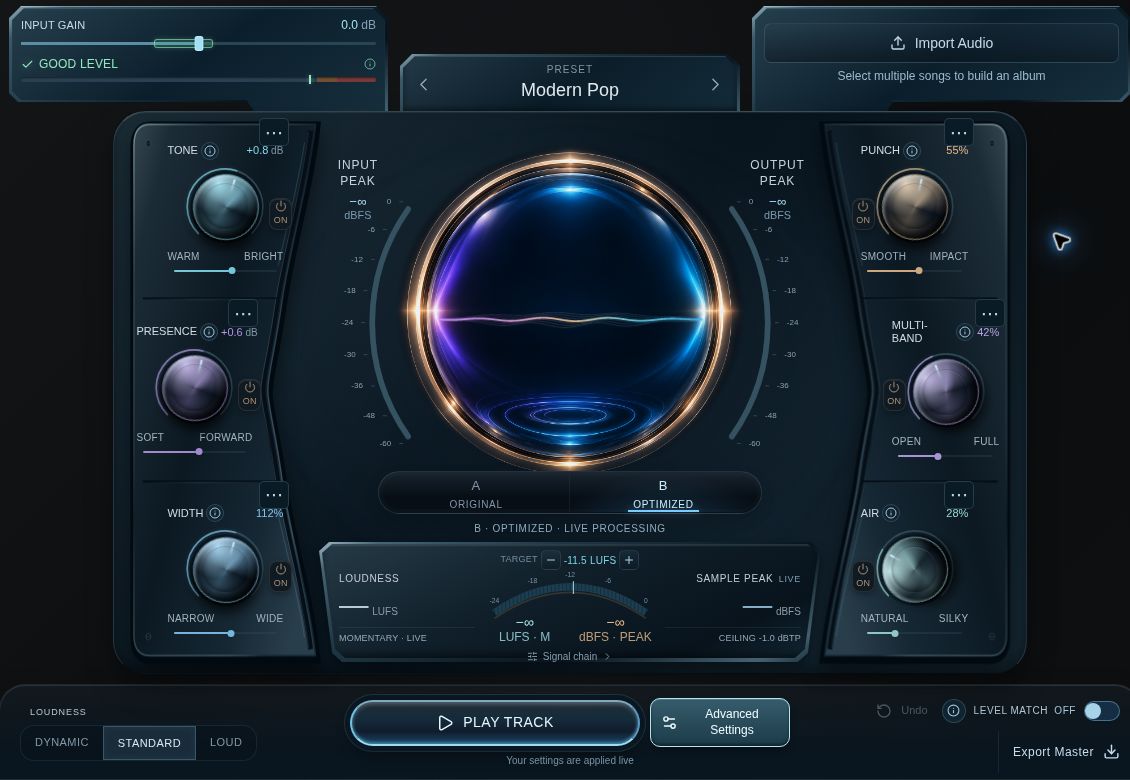
Figure 1. Home with the demo song selected. Settings shown are examples, not recommended targets.
- Top row: set Input Gain, choose a preset or import audio.
- Left and right banks: use Tone, Presence, Width, Punch, Multi-band and Air. Each effect keeps its setting when switched off.
- Center: compare A Original and B Optimized, then check the loudness target and meters.
- Bottom row: start playback, open Advanced Settings, toggle Level Match or export the master.
Features at a glance
Choose a starting preset for a quick first pass, then use detailed controls when a song or album needs closer work.
Shape each song
Adjust Tone, Presence, Width, Punch, Multi-band and Air, plus corrective EQ, Input Gain and a loudness target. Use shared Global Output EQ for an intentional album-wide change.
Compare with context
Switch between original and optimized audio, and use optional Level Match for listening comparisons. Inspect live spectra, whole-song averages and tonal balance against genre guides, imported references or album snapshots.
Build an album
Arrange up to 100 songs, rename them, set gaps and balance track levels. Keep individual mastering settings for each song while hearing the sequence together.
Edit without replacing your source
Trim the retained audio, choose fade durations and curves, and automate level over time. Loop a passage or a transition to check an edit. Original audio remains in the project.
Keep work editable
Autosave and reopen named browser projects. Download a portable .optimizer backup containing source audio and edits to safeguard the session or move it to another device.
Deliver songs and albums
Export WAV or 320 kbps MP3, separate album tracks in ZIP parts, or one continuous album WAV. Add an optional album production sheet PDF.
Know the boundaries
Browser saves are local, not cloud sync. Tonal references do not apply automatic EQ. The production sheet is not DDP or a PQ report. True-peak readings are estimates, not independent certification.
Save and reopen your work
Optimizer autosaves imported audio and edits locally in the current browser, not to a cloud-synced account. Check the status before closing a session.
Save a named project
- Open Files → Save Project.
- Enter a Project name. Choose Save in this browser, or Save as a new project for a separate version.
- Wait for Saved in this browser. Changes not saved yet, Saving in this browser… and Not saved · backup recommended do not confirm a completed save.
- Choose Files → Download Backup and keep the .optimizer file safely.
Know what each file preserves
| Save or export | What it is for |
|---|---|
| Browser project | Reopen the editable session from this browser and this website address. |
| .optimizer backup | Move or safeguard the editable project, including original audio, settings, order, trims, fades, automation, gaps and reference curves. |
| WAV or MP3 master | Deliver finished audio. It does not replace the editable project backup. |
Reopen a session
Choose Files → Open Project and a local project, or Open .optimizer backup to open a downloaded file. Backups can be reopened on another device.
Browser saves belong to this browser and website address. Clearing site data, private browsing or storage cleanup can remove them. Download a backup before changing devices, clearing storage or reloading to troubleshoot.
Project names and album names
The Project name identifies the session. Album Name is used for album ZIP and WAV filenames. Set it separately by double-clicking the album heading or editing Album Name in the export dialog.
Start a new album
Choose New Album. Save & New Album waits for saving to succeed. Discard changes & New Album skips changes not already autosaved, without deleting saved projects. Cancel keeps the current session open.
Save controls you will use
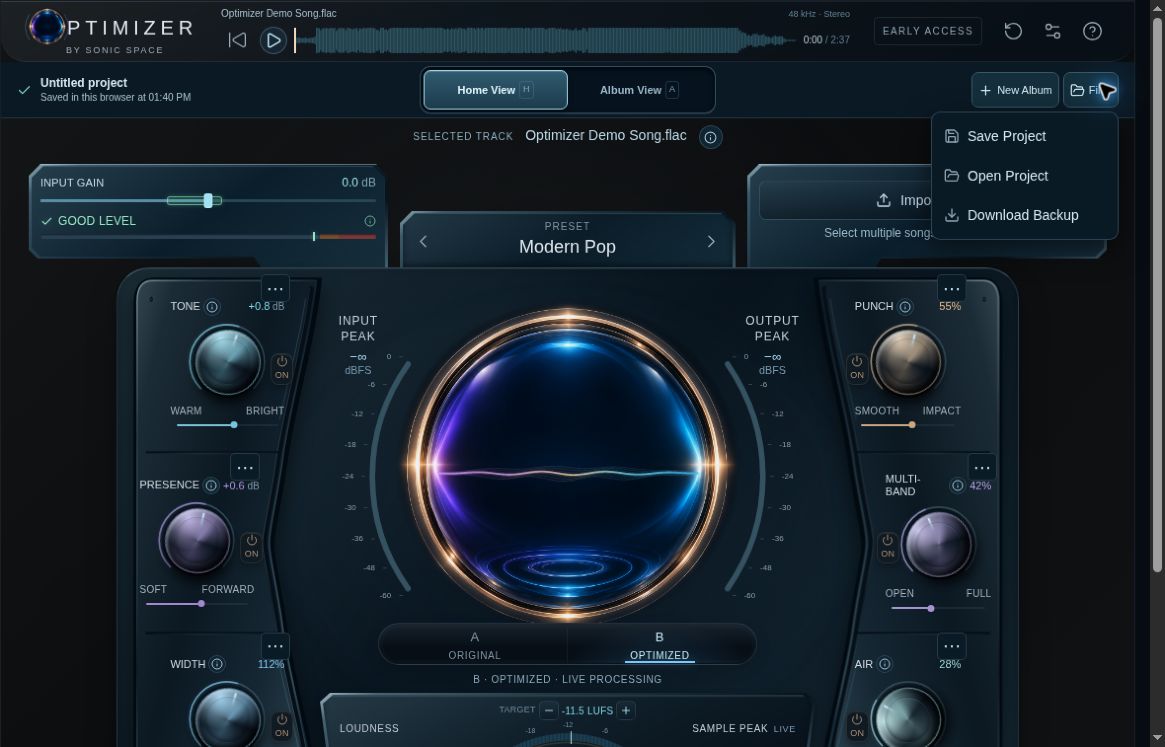
Figure 2. Files keeps project saving and backups together.
- Save Project names the browser session; Download Backup creates the portable copy.
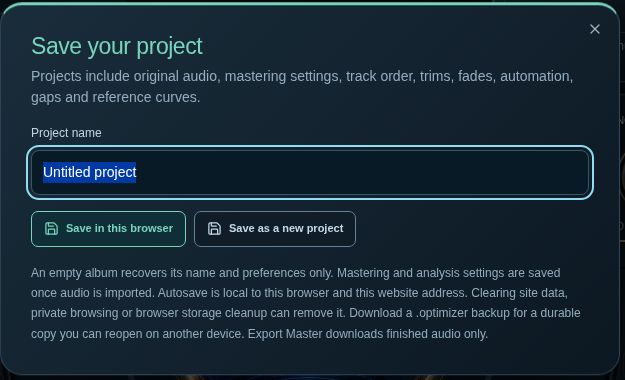
Figure 3. The save dialog names the editable project, separately from the album name.
- Project name: enter a useful session name.
- Save buttons: update this browser project, or keep a separate version with Save as a new project.
Master and compare a song
Select the intended song. Each song keeps its own settings. Presets change the mastering controls and target without overwriting trims, fades, automation or corrective EQ.
Set the input and finished loudness
Input Gain controls drive into EQ and dynamics. Follow the green guide and GOOD LEVEL, RAISE GAIN or LOWER GAIN indicator. Select it for measurements and a suggested change. Guidance uses the whole song, not the current passage.
The Loudness target is the desired finished LUFS; less negative is louder. Dynamic, Standard and Loud change that target. Peak limits can leave a dynamic song quieter than its target.
In Settings → Output ceiling, choose the mastered peak target from −3 to −0.3 dBTP. The limiter controls peaks; it does not guarantee the loudness target. Export checks an oversampled true-peak estimate.
Use the six mastering controls
| Control | Listen for |
|---|---|
| Tone | Warmer or brighter overall balance. |
| Presence | Softer or more forward upper midrange. |
| Width | A narrower or wider stereo image. 100% keeps the original width. Protect low-end width keeps lows below 120 Hz near their original width. |
| Punch | More transient emphasis and stronger impact. |
| Multi-band | Three-band compression for a fuller, more controlled balance. |
| Air | A high shelf that adds sheen and upper-frequency detail. |
Compare without losing your settings
A Original on Home, or A · Bypassed in Album, plays the retained original without gain, mastering, fades or automation. B Optimized plays the processed version. Changing a control in A keeps A playing; select B to hear it.
Level Match attenuates listening volume using a live estimate. Turn it off to hear the actual master level. Monitor volume also changes listening only. Neither affects export; normal exports remain mastered even if you listen to A.
Bypass only what you intend
Effect ON/OFF controls retain their settings. Right-click an effect or open its ⋯ menu to Bypass [effect] on all tracks or enable it across the album. This affects that stage only; Multi-band off leaves the limiter active.
Bypass Optimizer for this track affects playback and export independently of A/B. It retains trim, fades, track level and automation, but removes mastering, Global Output EQ and limiting. Boosts can clip. Choose Enable Optimizer for this track to restore processing.
Set mastering limits in Settings
Open Settings from the sliders icon near the top of Optimizer. These controls have different jobs; changing one is not a substitute for another.
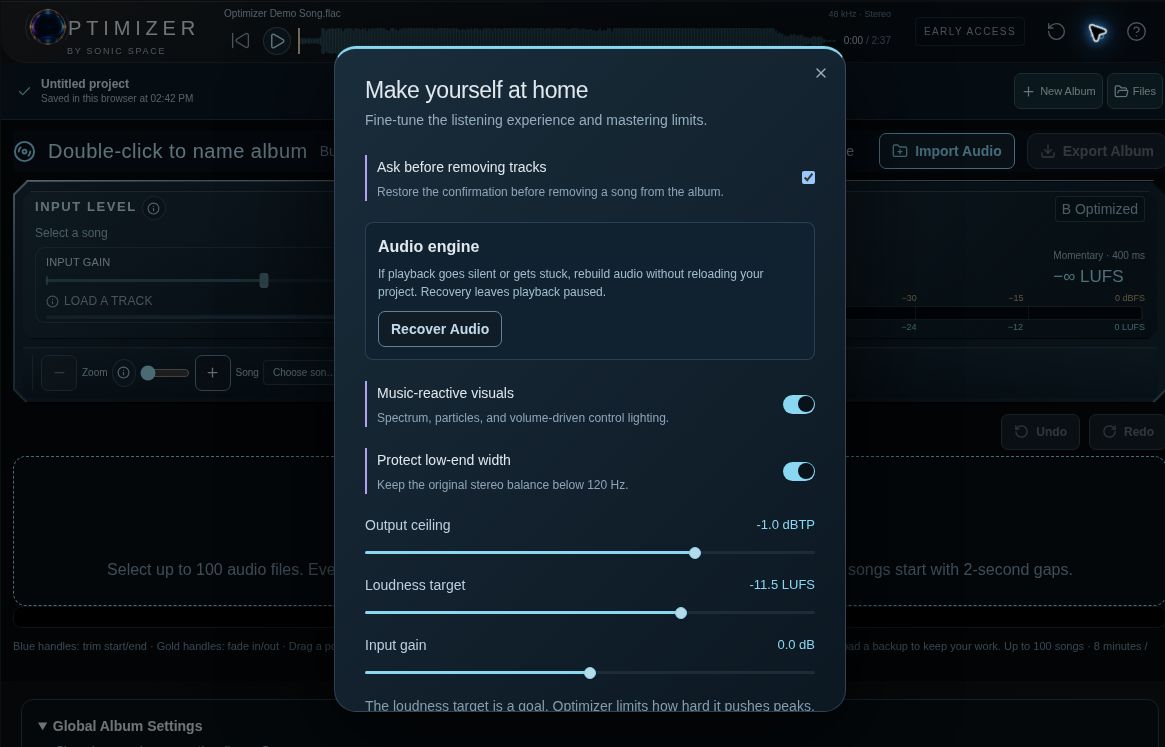
Figure 4. The Settings panel with the output and input controls visible.
- Output ceiling: sets the mastered peak target. Loudness target: sets the desired finished LUFS.
- Input gain: changes drive into EQ and dynamics, not monitor volume.
- Recover Audio: rebuilds a stuck audio engine without reloading the project; playback remains paused.
Use EQ and tonal analysis
Investigate what you hear, make a small change and compare again. Tonal references guide your decisions; they do not apply automatic EQ.
Adjust the selected song
- Choose Advanced Settings beside Play Track, or the song’s Selected Song Advanced Settings button in Album.
- Select B Optimized to hear changes. Inspect the spectrum and Tonal Balance.
- Adjust a corrective EQ band. Double-click its node to reset gain; use Q controls or scroll over the node to change width.
- Compare A and B. Corrective EQ is saved with the song and applied to its mastered export.
Choose a useful reference
- Genre guides offer Rock, Hip-Hop, Pop, Jazz and Acoustic starting curves.
- Import reference measures a file and displays its tonal range, with a 1.5 dB display margin.
- The Album reference menu captures another track’s master as a snapshot, not a continuously linked view.
References are level-normalized to compare tonal shape. Different arrangements can have different curves; do not force every song into one range.
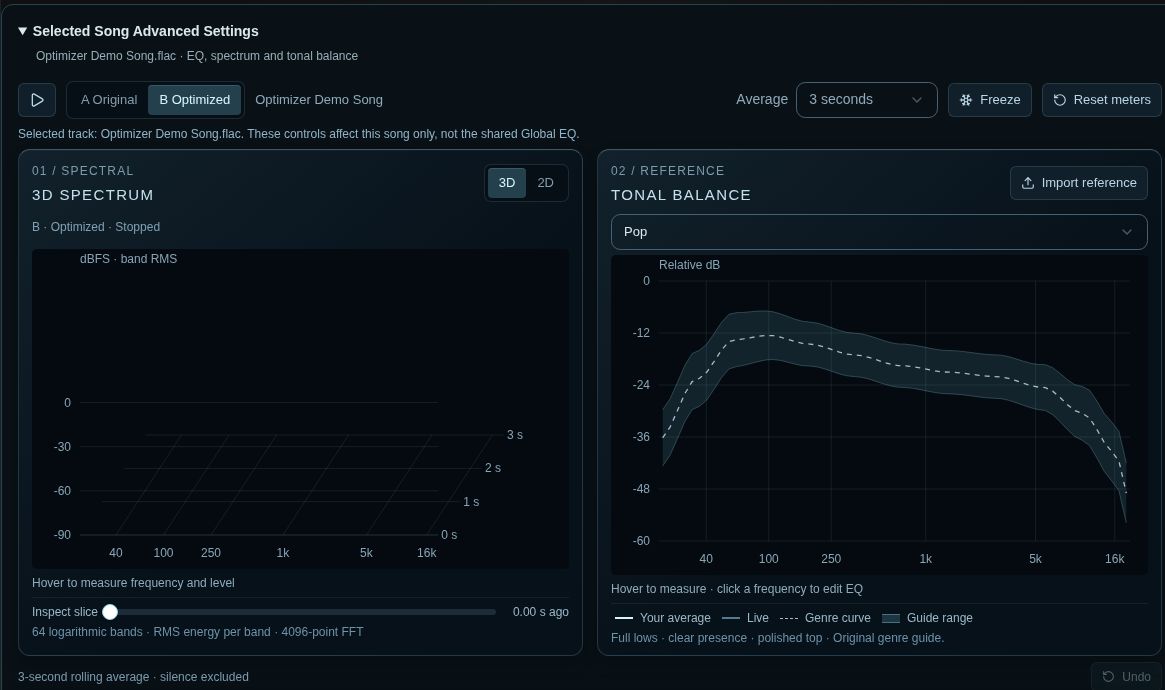
Figure 5. Selected-song analysis. Playback is paused, so the live spectrum is blank; the Pop guide remains visible.
Live meters differ from export measurements. Live loudness is momentary and amber peaks are sample peaks in dBFS. Export measures integrated loudness and an oversampled true-peak estimate in dBTP, not an independently certified guarantee.
Selected song and shared EQ
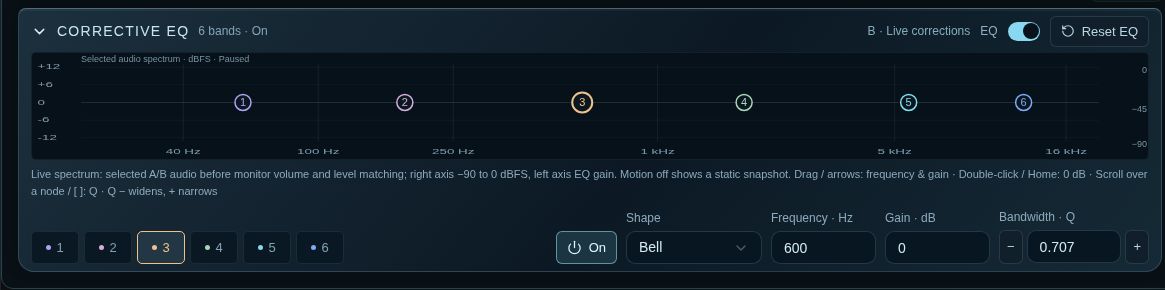
Figure 6. Corrective EQ belongs to the selected song. The numbered nodes are its six EQ bands.
- Node and band selectors: choose the band to adjust.
- Lower controls: set shape, frequency, gain and bandwidth Q; the top-right switch bypasses corrective EQ.
Read the display in context
Choose 3D or 2D and an Average of 3 seconds, 10 seconds or Whole song. Wait for a scan to finish. Freeze holds the display; Resume meters restarts it. Reset meters clears history, averages and peak holds.
Meters follow the selected A/B signal; switching clears the prior spectrum history. In Global Album Settings, they still measure the selected song, not an album average. Clicking a tonal correction there opens the selected song’s EQ.
Make an album wide adjustment
Open Global Album Settings from Album or press S outside typing fields and menus. Its shared EQ follows each song’s mastering, before fades and the final limiter. Use song EQ for an individual problem; use Global Output EQ for an intended album-wide change.
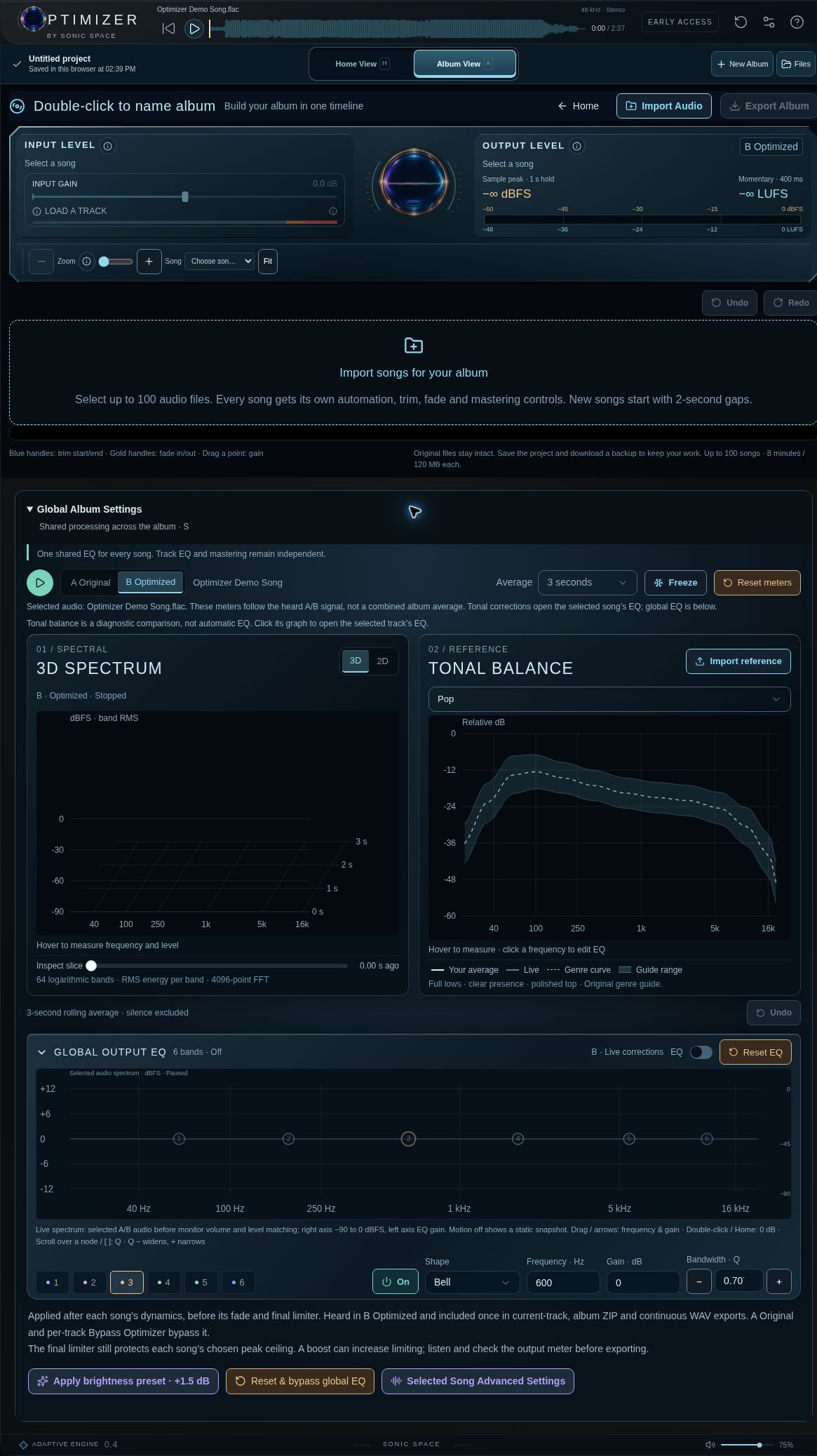
Figure 7. Global Output EQ is shared across songs. It is switched off in this view.
Arrange and edit an album
Open Album to work on the sequence. Choose Import Audio to add songs. New songs start with two-second gaps, and each song keeps its own mastering settings.
Set the order and spacing
- Drag a song’s six-dot grip to reorder it, or use its move arrows.
- Double-click a song name to rename it. Give the album its own name by double-clicking the album heading.
- Edit the gap between songs in seconds. The visible gap control accepts 0–30 seconds. Changing a gap moves every later song.
- Play across each transition. Use Fit to see the full sequence, or Zoom to song to work on one song.
A continuous album WAV includes the gaps. Separate-track exports preserve the sequence information in album-sequence.json, rather than turning the album into one continuous file.
Trim without changing the original
Use the blue trim handles, or the middle left and right waveform edge tools, to set the retained start and end. Enter exact values in Track settings & trim times. Both A and B use this range; original audio stays intact.
Zoom in before trimming closely. Listen for a clean opening and enough space for the final note or reverb tail. Reset trim & fades restores the full source range and removes its fades.
Shape the beginning and ending
Drag the gold fade handles or upper waveform corners: left for fade in, right for fade out. Open Fade in or Fade out, or right-click a handle, for duration and curve choices: Smooth, Linear, S-curve, Gentle or Steep. Each fade is limited to half the retained song and 60 seconds.
Fades are heard in B and included in export. A bypasses them. When Bypass Optimizer for this track is enabled, the timeline fades are still retained even though mastering and peak limiting are off.
Balance the songs
Use Track level in Track settings & trim times to balance one song against its neighbors. With Optimizer enabled, this gain acts before output limiting, so a boost can drive the limiter harder. Adjust Input Gain only when you also intend to change how the mastering dynamics respond.
Keep monitor volume unchanged while comparing transitions, quiet passages and loud sections. Similar meter readings do not always sound equally loud.
Remove a song and undo edits
Use Remove beside a song name to remove it from the timeline. Undo can restore it. If removal confirmations were turned off, restore Ask before removing tracks in Settings. Undo and redo also help you compare or reverse timeline edits.
Loop sections and automate level
Loops repeat a passage or transition for listening. Automation changes the song’s level over time and is included in the edited output.
Create an audition loop
- Drag across an empty waveform or timeline ruler area to mark a region. An album loop can cross songs and gaps.
- Double-click a song waveform to loop the whole retained song. With the waveform focused, L also selects a song loop.
- Drag the loop boundaries, or open Range and enter exact Loop start and Loop end values.
- Play the region and compare settings. Select Loop on to turn looping off, or Range → Clear loop to remove the selection.
Click to seek. On an album waveform or timeline, Enter returns to the selected song’s trimmed start without stopping ongoing playback. The compact album overview also supports click-to-seek, drag-to-loop and double-click-to-loop a song.
Add and edit automation points
- Use Shift + double-click on the waveform, or Track settings & trim times → Add automation point.
- Release after placing the point, then grab it again. Drag vertically for gain or horizontally for time.
- Enter exact Automation gain (dB) for a selected point, from −60 to +12 dB. The bottom −∞ lane is true silence.
- Double-click a point or press Enter on it to reset to 0 dB. Mute point (−∞) sets silence; Restore finite gain brings it back.
- Delete or Backspace removes an interior point. The first and last anchors stay at the trimmed boundaries, move only vertically and cannot be deleted.
Listen to the edited result
Automation is heard in B and included in the exported master. A bypasses it. With Optimizer enabled, reductions follow the limiter so it cannot undo them, while boosts remain peak-limited. If the entire track’s Optimizer is bypassed, the automation still applies but there is no limiter protection.
Dragging previews live in B. Escape cancels; Undo reverses a completed drag as one edit. Listen through the joins between points as well as the loudest change.
Before export, turn off looping and listen through the full song or album. Check that beginnings, endings, gaps and level moves work together.
Export finished audio
Save and back up your project. Choose Export Master for the selected song or Export Album from Album, then select the scope.
| Export scope | What you receive |
|---|---|
| Current master | The selected song as a WAV or MP3. |
| Album tracks · ZIP | Separate mastered songs in one or more ZIP files, with album-sequence.json. |
| Continuous album · WAV | One WAV containing the song order, retained sections, fades and inter-song gaps. |
Choose audio quality
WAV · lossless: stereo 16-bit or 24-bit PCM, at 44.1, 48, 88.2 or 96 kHz, with TPDF dither. Output is resampled from the 48 kHz engine; higher rates do not add missing source detail.
MP3 · 320 kbps: stereo, 48 kHz, constant bit rate. Lossy encoding can change reconstructed peaks. Continuous album export is WAV only. Follow the recipient’s delivery requirements.
Export applies song settings and shared Global Output EQ, unaffected by monitor volume, Level Match or listening A/B. Exception: Bypass Optimizer for this track retains timeline edits but removes mastering, global EQ and limiting. Check bypass states deliberately.
Download every album part
Larger albums use numbered ZIP parts at the chosen quality. Choose Download ZIP 1 and save it, then Continue to next ZIP. Repeat and Finish album export. Keep every part; each contains the complete album-sequence.json.
Include an album production sheet
Select Include album production sheet PDF and add optional details, which are saved in the project and backup. Each ZIP’s PDF describes that part’s tracks. After a continuous WAV export, choose Download production sheet PDF to save the separate document.
This supporting PDF is not a DDP image or PQ report. Entering codes does not register them or embed CD-Text or ISRC metadata in audio files.
Check the delivery
- Confirm the album and song names, order and intended bypass states.
- Listen to the downloaded audio, including starts, endings and transitions.
- Confirm every numbered ZIP part and any separate production PDF is saved.
- Keep the editable .optimizer backup alongside the finished delivery.
Choose your delivery settings
Confirm the export scope first, then choose the file quality. The dialog shown is for a single current master.
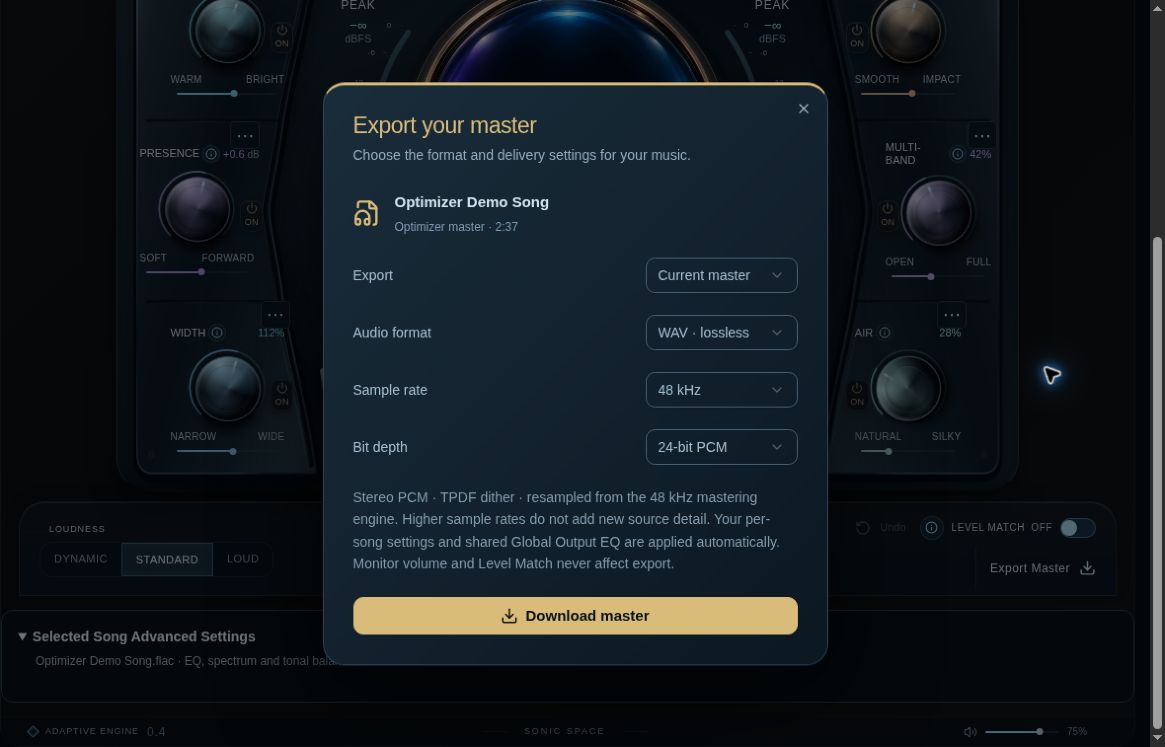
Figure 8. Single-song WAV export settings. Choose the format required for your delivery.
- Export: choose Current master, Album tracks or Continuous album as appropriate.
- Audio format and quality: choose WAV or MP3, then the available sample-rate and bit-depth options.
- Download master: prepares and downloads the audio. Save the editable .optimizer backup separately.
Shortcuts and troubleshooting
Shortcuts depend on focus. Text fields, native choices and menus keep their usual keys. Focus the relevant waveform or control before editing.
| Shortcut | Action and context |
|---|---|
| Space | Play or pause outside typing fields and native choices. |
| H / A / S | Open Home / Album / Global Album Settings. A opens Album; it does not select A Original. |
| B | Select B Optimized. Use the labeled A/B buttons to select A. |
| Enter | On an album waveform or timeline, return to the selected song’s trimmed start. On an automation point, reset its gain to 0 dB. |
| Ctrl or Cmd + Z | Undo. |
| Shift + Ctrl or Cmd + Z Ctrl + Y |
Redo. |
| R / T | Zoom the album out / in at the playhead. |
| Ctrl or Cmd + mouse wheel | Zoom the album around the pointer. |
| L | Loop a song when its waveform is focused. |
| Arrow keys | Adjust the focused edit control. Trim and fade handles use 0.1-second steps; Shift uses 1 second. |
| Delete / Backspace | Remove a selected interior automation point. |
| Escape | Cancel an active edit drag or leave an applicable edit control. |
Playback is silent or stuck
Check the selected song, monitor volume and device output. Settings → Recover Audio rebuilds the engine without reloading the project and leaves playback paused. Back up before reloading or clearing browser data.
A control seems to do nothing
Select B Optimized, check that the effect is ON and track-wide Optimizer bypass is off. Effect meters idle when paused, in A or on an unselected song. Sparse frequency content can also show little activity.
The result is quieter than expected
Turn off Level Match and check monitor volume. Peak limits can prevent a dynamic song from reaching its target. Input Gain changes processing drive; monitor volume changes only listening.
A project or download is missing
Check Files → Open Project in the same browser and website address, or Open .optimizer backup. Check all numbered ZIP parts; a continuous album’s production PDF downloads separately.